
🧩Introduction
Outlook for iOS and Android is a mobile app version of Microsoft’s Outlook email and calendar service. It provides users with access to their email, calendar, contacts, and files from their smartphone or tablet. Key features include focused inbox for prioritizing important emails, calendar integration, the ability to schedule meetings, swipe gestures for quick email management, and compatibility with various email services such as Outlook.com, Office 365, Exchange, Gmail, and Yahoo Mail. The app aims to enhance productivity by offering a seamless and organized experience for managing communication and schedules on the go.
In this specific blog post will discuss a case when a user with Outlook for Android is not able to synchronize his mailbox in Exchange on-premises, specifically, in hybrid config with HMA enabled.
If you have this configuration and your users got used to Outlook for IOS and Android, you definitely should be familiar with this article 🔗 https://learn.microsoft.com/en-us/exchange/clients/outlook-for-ios-and-android/use-hybrid-modern-auth?view=exchserver-2019 that describes connectivity changes and specifics that are applied to this specific client.
In short, all communications with your on-premises Exchange servers are going through the cloud.
🔄Communications details
As an example, let’s take a look at requests for MSExchangeSyncAppPool in IIS Manager – as Active Sync is used for connectivity in this case (Worker Processes -> double click corresponding app pool):

In this example URL connection string contains one of two options for DeviceType – Outlook or OutlookService.
We can use LogParser to identify all possible user agents that are connected to our servers using Active Sync.

In this example we can see a couple agents that are used by managed availability checks, MSFT-WIN-XXX agent related to Windows Mail client. Other two, Outlook-iOS-Android/1.0 and OutlookServiceMrsAgent both related to Outlook for Android client.
If I would like to get statistics for IP addresses that are used for Active Sync connectivity, I will see something like this.
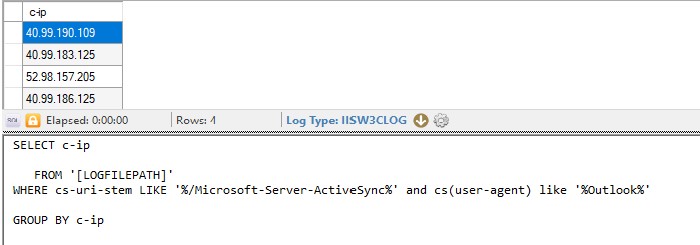
All these IP addresses are related to Office 365 official IP ranges https://learn.microsoft.com/en-us/microsoft-365/enterprise/urls-and-ip-address-ranges?view=o365-worldwide
🛠️Troubleshooting this issue
Assume that our user complains about his Outlook for Android client.
- When a user sends an email from mobile device it looks like it’s sent (no errors). But recipients don’t receive this message. After some time, this user can NDR message that looks like this:
We couldn’t deliver your message
Technical details
MessageDeliveryFailedException: Could not deliver the message [len=70, data=0000000035C79469DDB4EA429C6BF1DF8F27A956070043B12F21469F3C4
B8789E187053F374600000000010F000043B12F21469F3C4B8789E187053F37460000DCA863700000]
sent at 7/10/2024 11:51:51 PM.
Failure code: 9932
- He doesn’t receive new messages in his mobile device, even if he sends email to himself from desktop Outlook client
First of all, we can try to look for connections by Active Sync for this specific client.
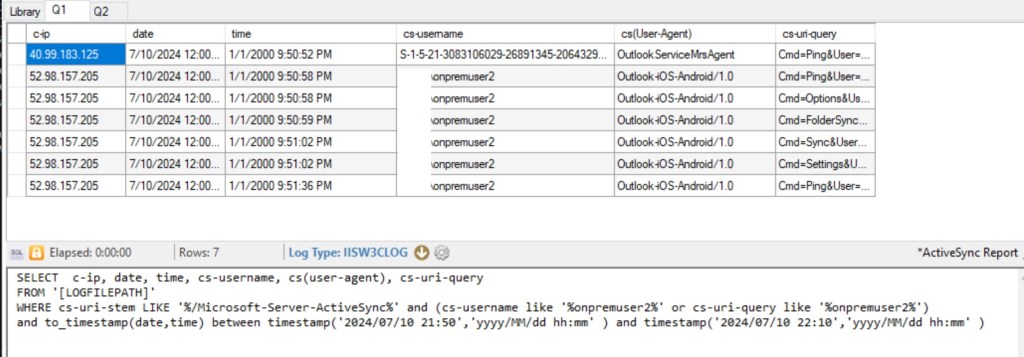
As we can see, for some time connections worked fine, but after some time we cannot see anything.
But if we can go to httperr log (located in C:\Windows\System32\LogFiles\HTTPERR) we can see request we’re looking for with Request_Cancelled status.

Because we don’t have more information about that issue, we can configure and use Failed Request Tracing. We don’t have a specific error code, so we can suggest, that is action is predicted and planned. In the end of the blog I’ve added some information on what failed request tracing is and how to configure it.
In this specific case I will just provide rule settings I used:
- Enable FRT on Default Web Site (in production environment you would probably need to set more large maximum number, but take care about disk space):

2. Next, you can create tracing rule for default web site or active sync directory:
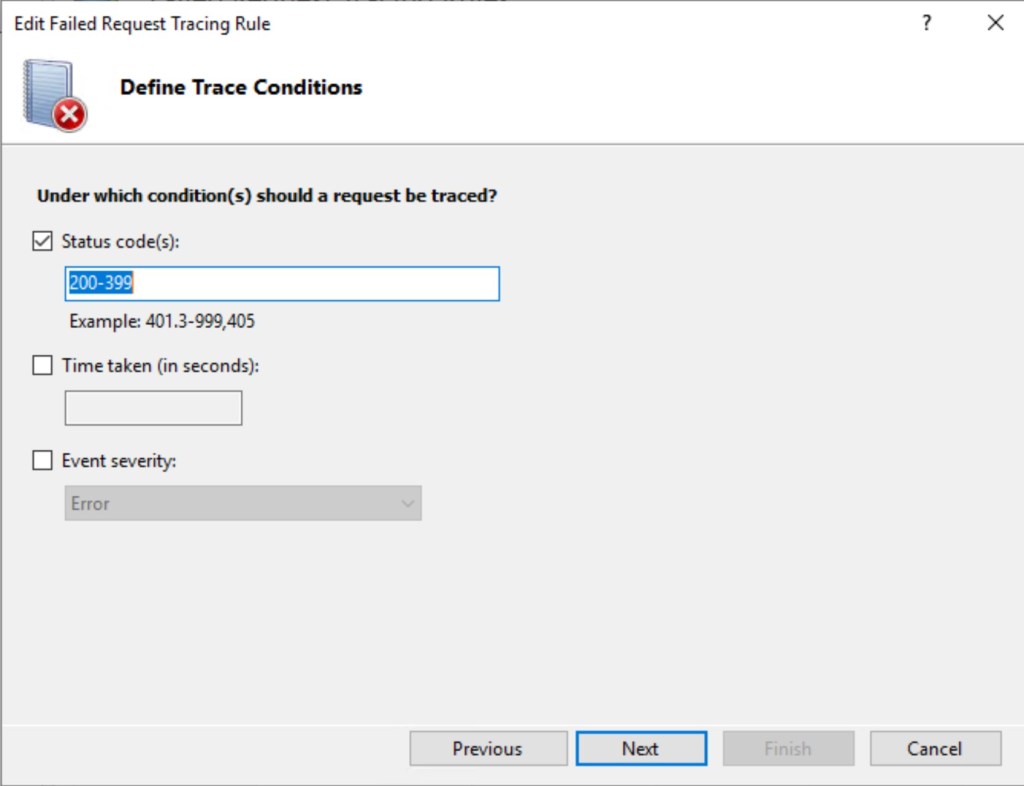

We can ask a user to reproduce issue – send email, restart his client. After you will see corresponding record in HTTPERR logs.
You can use a simple script to find, if corresponding request was captured:
$directory = “C:\inetpub\logs\FailedReqLogFiles\W3SVC1”
$searchString = “onpremuser2”
$xmlFiles = Get-ChildItem -Path $directory -Filter *.xml -Recurse
foreach ($file in $xmlFiles) {
$content = Get-Content -Path $file.FullName -Raw
if ($content -like “*active*$searchString*”) {
Write-Output $file.FullName
}
}
Open this file with IE to view this in a readable way – you need the exact file and freb.xsl from the same directory. Maybe where’s a way to do that in another browser, but I didn’t investigate it.
So, we can see that request was aborted and actual status was 200.

On request details tab we can see exact information on IIS rewrite module and blocking rule:
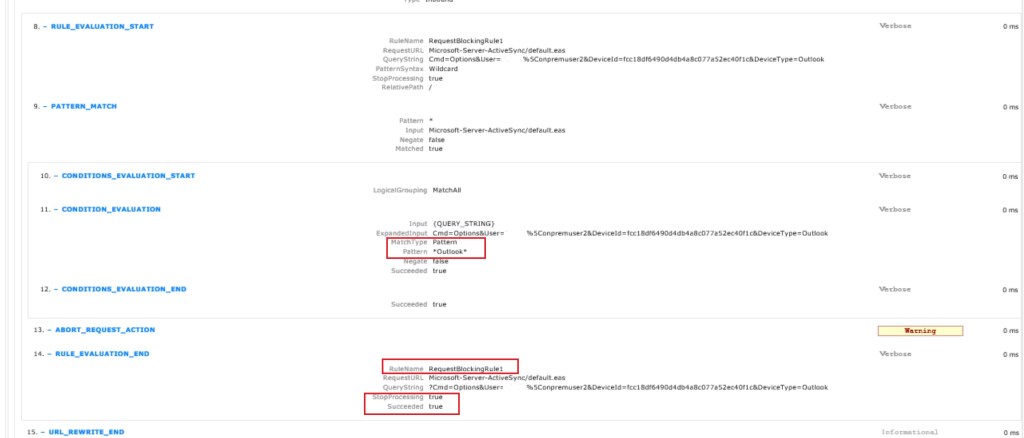
So, the root cause of the issue is URL Rewrite module in IIS that has a rule configured to block requests. In this example – containing ‘Outlook’ in query string (URL).

Remove the rule and Outlook for Android will sync successfully.
🔎Conclusion
From personal experience sync and connection issues with Outlook for IOS and Android are related to:
- Not all Office 365 official IP ranges are enabled to connect to Exchange on-premises https://learn.microsoft.com/en-us/microsoft-365/enterprise/urls-and-ip-address-ranges?view=o365-worldwide
- Corresponding User Agent is blocked or not enabled in Exchange Server level
- In this example we blocked and filtered connections on IIS level. So, we don’t see them in IIS logs, but in HTTPERR. In case, connections are blocked in some intermediate device, you won’t see anything on your Exchange Servers, like Outlook never tried to connect
- A couple of times I saw that User agent was under some broad wildcard mask that used to block specific logins, but Outlook User Agent was affected
Of cause, we cannot exclude situations, when issue is client \ or O365 specific. But still you need to know and investigate your environment for possible root cause.
🧰For more information on Failed Request Tracing, please, follow:
🧰For more information on LogParser and HttpErr logs, please, read:
End.
 EWS Free Area
Leave a comment