
Sometimes Exchange services crash silently, and traditional tools like the Event Viewer offer little insight. This post walks through a real-world case involving the Microsoft Exchange Active Directory Topology service, offering practical steps and explanations to identify the underlying WCF-related issue.
🛠️ Real-World Scenario: Service Fails to Start
A customer reports that the Microsoft Exchange Active Directory Topology service fails to start. Strangely, Event Viewer shows almost no detailed errors, but one clue stands out:
Process Microsoft.Exchange.Directory.TopologyService.exe (PID=8416). Microsoft Exchange Active Directory Topology Service WCF endpoint faulted
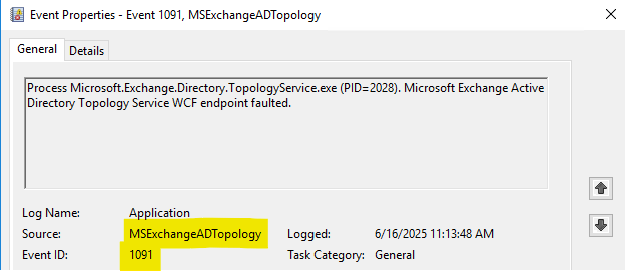
This message strongly suggests a WCF (Windows Communication Foundation) configuration problem. In Exchange Server, each service that relies on WCF has its own .config file containing WCF endpoint definitions. If these endpoints are missing or invalid, the WCF service host cannot initialize.
According to Microsoft documentation on WCF configuration, if a WCF service starts and finds no application endpoints defined, it throws an InvalidOperationException and fails to launch. The service definition must match the name attribute expected in the code, and the corresponding endpoint entries must be present in the .config file.
📌Understanding WCF in Exchange
Windows Communication Foundation (WCF) is a Microsoft framework used for inter-process and network communication. In Exchange Server, WCF is used to expose internal APIs over various protocols—commonly net.tcp.
WCF configuration includes:
- Service Contracts – Interfaces for operations.
- Bindings – Transport protocol and encoding settings.
- Endpoints – Network addresses where the service listens.
Exchange services such as TopologyService, RPC Client Access, and others use WCF under the hood.
Each service has a corresponding .config file located in:
C:\Program Files\Microsoft\Exchange Server\V15\Bin\
For example:
- Microsoft.Exchange.Directory.TopologyService.exe.config
- Microsoft.Exchange.Diagnostics.Service.exe.config
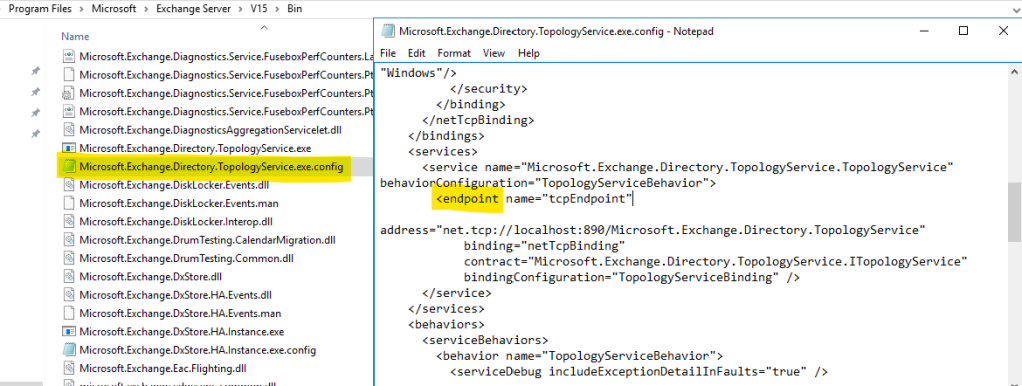
These files define the expected endpoints. If a file is missing, corrupted, renamed (e.g., *.config.default), or the <endpoint> section is empty or invalid, the WCF service host cannot expose any usable endpoints and will fail with a message such as “has zero application endpoints.”
Step-by-Step Diagnostic Approach
- Check the Event Viewer
- Look for messages like “WCF endpoint faulted”
- Search for .NET Runtime or Application Error entries
- Inspect the .config File
- Verify that the .config file for the crashing service exists
- Check for the <system.serviceModel> section
- Ensure the correct <service> and <endpoint> entries are defined
- Validate XML syntax (e.g., no missing closing tags)
- Compare With a Working Server
- If this is a multi-server deployment, compare the .config from another node
- Look for Backup Files
- Files like *.config.default, *.bak, or *.old may contain the correct configuration
- Example of Microsoft.Exchange.Directory.TopologyService.exe.config configuration file:
🔎 Optional Deep Dive: Analyzing a Crash Dump with WinDbg
If basic inspection doesn’t reveal the problem, and the service crashes outright, a dump file may help. This is a simple example. To learn more about WinDbg follow the links at the end of the blog post and other Microsoft official articles.
- Enabling Full Dump Collection Automatically
If a service crashes and you want Windows to automatically generate a full memory dump, you can configure this using the registry. For example, to enable dumps for Microsoft.Exchange.Directory.TopologyService.exe:
- Open regedit.exe
- Navigate to:
HKEY_LOCAL_MACHINE\SOFTWARE\Microsoft\Windows\Windows Error Reporting\LocalDumps\Microsoft.Exchange.Directory.TopologyService.exe - Create the key if it doesn’t exist, then add the following values:
- DumpFolder (REG_SZ): C:\Dumps
- DumpCount (DWORD): 10
- DumpType (DWORD): 2 (Full dump)
- Ensure the DumpFolder exists and the service account has write permissions.
Once this is in place, Windows will automatically create .dmp files in the specified folder any time the service crashes.

2. Download and Install WinDbg
- Get the Windows SDK from Microsoft: https://developer.microsoft.com/en-us/windows/downloads/windows-sdk/
- During the installation, select only Debugging Tools for Windows
3. Set Up Symbol Path
In WinDbg: File -> Settings -> Command window, set:
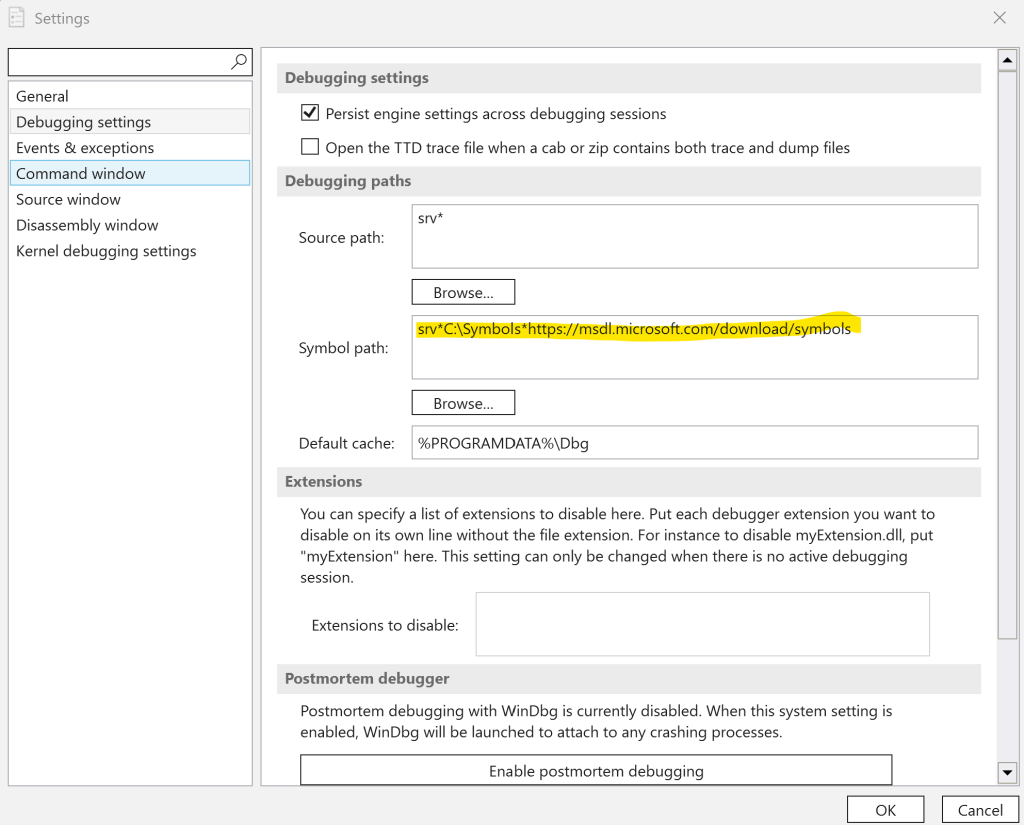
Or, alternatively, you can run command below in WinDbg:
.sympath srv*C:\Symbols*https://msdl.microsoft.com/download/symbols
.reload

4. Load and Analyze the Dump
Useful commands:
| Command | Description |
| !analyze -v | Automatic crash analysis |
| .loadby sos clr | Load SOS extension for .NET debugging |
| !pe | Show current .NET exception on thread |
| !dumpheap -type System.Exception | List exception objects in memory |
| !clrstack | Show managed call stack for current thread |
| ~* e !clrstack | Run !clrstack on all threads |
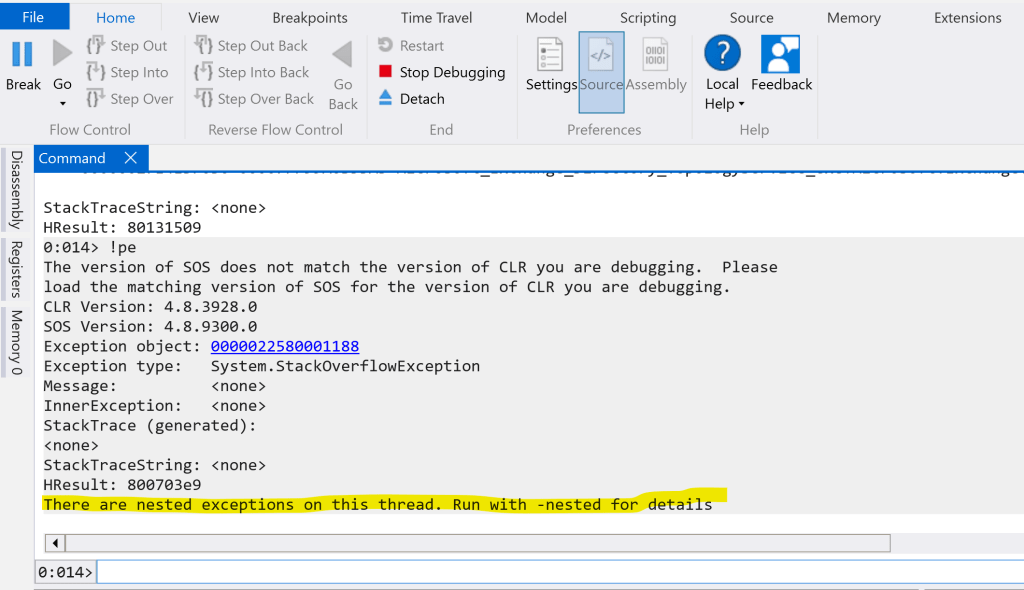
In our case, running !pe might yield:
⚠️ Note on SOS version mismatch
When opening a memory dump from an Exchange server on a different machine (e.g., your local workstation), you may encounter the following error when using the !pe or other SOS commands:
The version of SOS does not match the version of CLR you are debugging.
Please load the matching version of SOS for the version of CLR you are debugging.
This happens because SOS.dll (Son of Strike) — the extension used for debugging .NET applications — must match the version of the CLR (Common Language Runtime) that was running on the original system where the dump was captured.
In that case were can ignore this, but you can:
- Use .cordll -ve -u -l in WinDbg to automatically load the correct CLR and SOS from the dump.
- Manually load the right SOS from the target machine if available (typically from C:\\Windows\\Microsoft.NET\\Framework64\\v4.0.30319\\sos.dll).
- Or better yet, open the dump on a machine with the same .NET Framework version installed as the one running Exchange.
Running !pe -nested as suggested:
Exception type: System.InvalidOperationException
Message: Service ‘Microsoft.Exchange.Directory.TopologyService.TopologyService’ has zero application (non-infrastructure) endpoints. This might be because no configuration file was found for your application, or because no service element matching the service name could be found in the configuration file, or because no endpoints were defined in the service element.

This confirms that WCF failed to initialize due to missing or invalid endpoint definitions in the configuration file. In our case the corresponding configuration file was missing from bin directory and we used a file with .default extension to recover.
🧰Recommended Resources
- 🔗 WCF Configuration Overview
- 🔗 Debugging Tools for Windows
- 🔗 Exchange Server Documentation
- 🔗 WinDbg Managed Debugging (SOS)
When a service crashes silently or reports that a WCF endpoint has been faulted, configuration files are the first place to look. Understanding how WCF is structured and knowing how to inspect those files—or take the next step into dump analysis—can save hours of guesswork.
End.
 EWS Free Area
Leave a comment