
📌Introduction
Exchange Server is a really complex product. Administrators can experience different issues related to mailflow really often, and the root cause of those issues can be different.
Whenever you troubleshoot any issues that are related to mailflow, there are always some important questions you need to think about and ask the users or customers to provide you a set of information useful for incident resolution. Don’t forget there’s always a probability that some information can be false\positive intentionally or not.
To be effective in troubleshooting, it’s important to:
- Understand the architecture of transport services.
- Know how mail flow should work.
- Have understanding on topology of your infrastructure (at least, about components important and related to mailflow)
- This is important not only regarding Exchange, but also 3d party products, such as Firewalls, Internet gateways, Antivirus systems and so on
In this blog post we will go though several scenarios and discuss how to troubleshoot specific issues.
We will not discuss basic staff as it can be found in official Microsoft documentation. So, if you’re not familiar with basics of transport architecture and troubleshooting in Exchange Server, I would recommended to go though below articles first:
Mail flow and the transport pipeline
Receive connectors in Exchange Server
Send connectors in Exchange Server
Exchange Server routing load balancing and fault tolerance
Exchange Server: Configure pipeline tracing
Exchange Server: Search message tracking logs
🛠️Troubleshooting mail flow in Hybrid environments
In O365 we don’t have direct access to logs available in Exchange on-prem and need to use reports and features, available there.
One of the most valuable features for mail flow troubleshooting is MessageTrace feature. Review Monitoring, reporting, and message tracing in Exchange Online | Microsoft Learn for more information.
Note. Don’t forget, that any servers, services, or devices between your on-premises Exchange servers and Microsoft 365 or Office 365 that process or modify SMTP traffic are not supported.
In cases related to Hybrid configuration, it’s important to understand configuration specific regarding mail flow between EXO and on-prem. While running Hybrid Configuration Wizard, usually several thigs are configured to secure mailflow.
To help protect recipients in both the on-premises and Exchange Online organizations, and to help ensure that messages sent between the organizations aren’t intercepted and read, transport between the on-premises organization and EOP is configured to use forced TLS. Secure mail transport uses TLS/SSL certificates provided by a trusted third-party certificate authority (CA). Messages between EOP and the Exchange Online organization also use TLS.
When using forced TLS transport, the sending and receiving servers examine the certificate configured on the other server. The subject name, or one of the subject alternative names (SANs), configured on the certificates must match the FQDN that an administrator has explicitly specified on the other server. For example, if EOP is configured to accept and secure messages sent from the mail.contoso.com FQDN, the sending on-premises Mailbox or Edge Transport server must have an SSL certificate with mail.contoso.com in either the subject name or SAN. If this requirement isn’t met, the connection is refused by EOP. For more information, please, visit: Transport options in Exchange hybrid deployments | Microsoft Learn
Let’s go though some configuration settings related to mailflow in more detail.
Demystifying and troubleshooting hybrid mail flow
🔄Transport settings in on-prem Exchange Organization
📌Receive connector
For transport configuration we need appropriate send and receive connectors configured.
In most configurations Default Frontend Receive connector is used to receive messages from O365. HCW will check several settings that are expected for that configuration and can fix configuration if it’s different from expected.
To accept messages from O365, receive connector in on-premises is expected to be able to receive messages from IP ranges, related to O365. In default configuration we accept messages from whole range of IP addresses (RemoteIPRanges parameter). Some customers can limit this range to defined list of O365 addresses on network level. If this one is configured incorrectly mail flow will be affected. This list has an RSS feed that can be added to your favorite RSS reader or even Outlook Office 365 URLs and IP address ranges.
Important settings that are controlled and verified by HCW described below. PermissionGroups parameter should has AnonymousUsers enabled. Thus, customers with specific configurations who disable that manually, will see it enabled again after they re-run HCW.
TLSDomainCapabilities and TLSCertificateName are configured by HCW. Certificate, defined in TLSCertificateName should be available on all servers, participating in mail flow between O365 and on-prem. It should be valid from O365 perspective – trusted, label that matches the external FQDN of your Edge Transport or Mailbox servers, such as edge.contoso.com. For more information on certificate requirements visit Certificate requirements for hybrid deployments | Microsoft Learn
Sample configuration for receive connector:
Name : Default Frontend EXMB01
AuthMechanism : Tls, Integrated, BasicAuth, BasicAuthRequireTLS, ExchangeServer
Bindings : [::]:25, 0.0.0.0:25
RemoteIPRanges : ffff:ffff:ffff:ffff:ffff:ffff:ffff:ffff’,’0.0.0.0-255.255.255.255′
Fqdn : EXMB01.contoso.com
PermissionGroups : AnonymousUsers, ExchangeServers, ExchangeLegacyServers
RequireTLS : False
Server : EXMB01
TLSDomainCapabilities : mail.protection.outlook.com:AcceptCloudServicesMail[]
TLSCertificateName : <I>CN=R3, O=Let’s Encrypt, C=US<S>CN=mail.contoso.com
📌Certificate
Certificate should be valid. Below wildcard certificate is configured for receive connector and matches server fqdn.
Get-ExchangeCertificate 0E90163B423C7D64C6732BF24F9A94D732449743 | fl
CertificateDomains : {mail.contoso.com, autodiscover.contoso.com}
HasPrivateKey : True
IsSelfSigned : False
Issuer : CN=R3, O=Let’s Encrypt, C=US
NotAfter : 7/18/2023 10:01:54 PM
NotBefore : 4/19/2023 10:01:55 PM
PublicKeySize : 3072
RootCAType : ThirdParty
SerialNumber : 039EEB851AB8FDB12638054F2B2599884C82
Services : IIS, SMTP
Status : Valid
Subject : CN=mail.contoso.com
Thumbprint : 0E90163B423C7D64C6732BF24F9A94D732449743
HealthChecker script does some verification regarding connector’s and certificate configuration for hybrid mailflow as described here: CloudConnectorCheck – Microsoft – CSS-Exchange
📌Send Connector
HCW creates dedicated send connector for mailflow between O365 and Exchange on-prem.
Sample configuration for send connector created by HCW:
Name : Outbound to Office 365 – a874157c-6722-4d49-abaf-6f83d15297dc
AddressSpaces : smtp:cloudtest.mail.onmicrosoft.com;1
CloudServicesMailEnabled : True
DNSRoutingEnabled : True
ErrorPolicies : Default
Fqdn : mail.contoso.com
RequireTLS : True
SmartHosts : 0
SourceTransportServers : EXMB01
TLSAuthLevel : DomainValidation
TLSCertificateName : <I>CN=R3, O=Let’s Encrypt, C=US<S>CN=mail.contoso.com
TLSDomain : mail.protection.outlook.com
In this example DNS for routing is used for cloud domain cloudtest.mail.onmicrosoft.com, TLS domain and certificate are configured appropriately.
📌Accepted domains
Accepted domain for cloud domain cloudtest.mail.onmicrosoft.com is configured as Authoritative with other settings set as default.
📌Remote domains
Two remote domains are configured by HCW for Hybrid mailflow:
Identity : Hybrid Domain – cloudtest.mail.onmicrosoft.com
DomainName : cloudtest.mail.onmicrosoft.com
IsInternal : False
TargetDeliveryDomain : True
ByteEncoderTypeFor7BitCharsets : Undefined
CharacterSet :
NonMimeCharacterSet :
AllowedOOFType : External
AutoReplyEnabled : True
AutoForwardEnabled : True
DeliveryReportEnabled : True
NDREnabled : True
MeetingForwardNotificationEnabled : False
ContentType : MimeHtmlText
DisplaySenderName : True
PreferredInternetCodePageForShiftJis : Undefined
RequiredCharsetCoverage :
TNEFEnabled :
LineWrapSize : Unlimited
TrustedMailOutboundEnabled : False
TrustedMailInboundEnabled : False
UseSimpleDisplayName : False
NDRDiagnosticInfoEnabled : True
MessageCountThreshold : 2147483647
Identity : Hybrid Domain – cloudtest.onmicrosoft.com
DomainName : cloudtest.onmicrosoft.com
IsInternal : False
TargetDeliveryDomain : False
ByteEncoderTypeFor7BitCharsets : Undefined
CharacterSet :
NonMimeCharacterSet :
AllowedOOFType : External
AutoReplyEnabled : True
AutoForwardEnabled : True
DeliveryReportEnabled : True
NDREnabled : True
MeetingForwardNotificationEnabled : False
ContentType : MimeHtmlText
DisplaySenderName : True
PreferredInternetCodePageForShiftJis : Undefined
RequiredCharsetCoverage :
TNEFEnabled :
LineWrapSize : Unlimited
TrustedMailOutboundEnabled : False
TrustedMailInboundEnabled : True
UseSimpleDisplayName : False
NDRDiagnosticInfoEnabled : True
MessageCountThreshold : 2147483647
Most of settings are set to default (but notice settings regarding OOF and automatic forwarding). Cloud domain cloudtest.mail.onmicrosoft.com configured as TargetDeliveryDomain.
🛠️Transport Settings in O365
The same for cloud side – HCW will configure some items for Hybrid coexistence.
📌Inbound connector
On MAIL FROM command, Exchange Online Protection (EOP) will search for an OnPremises type inbound connector that matches the Exchange on-prem IP or TLS certificate used to STARTTLS. If there is a match, message is classified as Originating
Inbound connector configured by HCW to use certificate with smtp domain of our test Organization. Other important settings are listed below.
Name : Inbound from 5edce467-4625-444a-b56c-6500708cbe45
CloudServicesMailEnabled : True
ConnectorSource : HybridWizard
ConnectorType : OnPremises
RequireTLS : True
SenderDomains : smtp:*;1
SenderIPAddresses :
TLSSenderCertificateName : *.contoso.com
AssociatedAcceptedDomains :
SenderDomains :*
RestrictDomainsToIPAddresses : False
📌Outbound connector
Outbound connector settings depends on configuration selected in HCW. In example below we didn’t select centralized transport in HCW during configuration. Outbound connector in example below is configured by HCW with following parameters in that case:
Name : Outbound to 5edce467-4625-444a-b56c-6500708cbe45
CloudServicesMailEnabled : True
ConnectorSource : HybridWizard
ConnectorType : OnPremises
RecipientDomains : contoso.com
RouteAllMessagesViaOnPremises : False
SmartHosts : mail.contoso.com
TLSDomain : mail.contoso.com
TLSSettings : DomainValidation
IsTransportRuleScoped : False
UseMxRecord : False
🛠️On-Premises Organization
After appropriate inbound and outbound connectors created, HCW create OnPremises Organization object as per example below:
OrganizationName : contoso
HybridDomains : contoso.com
InboundConnector : Inbound from 5edce467-4625-444a-b56c-6500708cbe45
OutboundConnector : Outbound to 5edce467-4625-444a-b56c-6500708cbe45
OrganizationRelationship : O365 to On-premises – 5edce467-4625-444a-b56c-6500708cbe45
OrganizationGuid : 5edce467-4625-444a-b56c-6500708cbe45
📌Message headers in Hybrid mailflow
Exchange on-prem converts X-MS-Exchange-Organization-* headers to X-MS-Exchange-CrossPremises-* if there is an Accepted Domain for the recipient TargetAddress (mail.onmicrosoft.com) AND if the Send Connector attribute CloudServicesMailEnabled is $True
EXO outbound connector converts X-MS-Exchange-Organization-* to X-MS-Exchange-CrossPremises-* if the CloudServicesMailEnabled attribute is $True
From a hybrid mail flow perspective, there is an important header which we often check in security assessment situation or any spam, spoof, or phish analysis called: X-MS-Exchange-Organization-AuthAs. If X-MS-Exchange-Organization-AuthAs is listed as anonymous or if it’s missing, this indicates an incorrect configuration or an incorrect mail route.
Setting above allows to keep X-MS-Exchange-Organization-AuthAs as internal while routing message in Hybrid config.
🛠️Gathering all together
What now? We discussed a lot of theoretical aspects and opportunities for troubleshooting. Let’s look at some practical situations and think, how we can apply this information for real cases troubleshooting.
🧪Scenario №1
User A sent some message to User B and message was not delivered.
In this situation, we can track message via Message Tracking Logs (or delivery reports, also can be tracked by user himself). Sometimes message can be dropped by transport rule, agent, or moved by inbox rule or mobile client to another folder on recipient side. If message was sent to external recipient, for us it’s enough to prove, that message was accepted by recipient’s email servers.
📌Troubleshooting steps
- We have example of message that wasn’t delivered. For example, who, whom, when, subject and so on. You can search message tracking logs with appropriate filter.

We have some interesting events here. Shadow redundancy is not working (HAREDIRECTFAIL) and message is copied to another email address (test555@contoso.com). But as we’re interested why message wasn’t delivered, we need to dig into FAIL and AGENTINFO events.
2. Let’s start with FAIL:
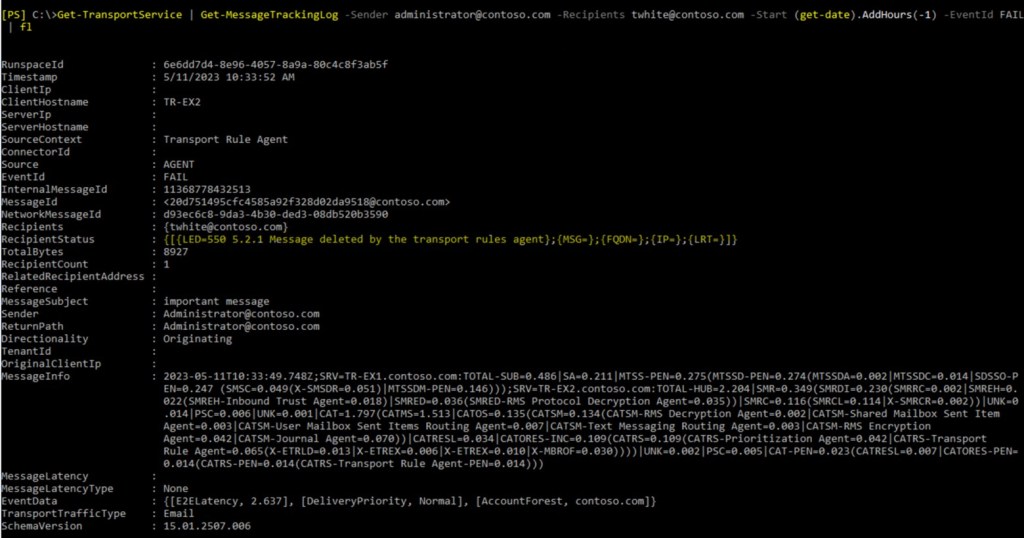
We can see, that message was deleted by transport rule. But how many transport rules do we have?
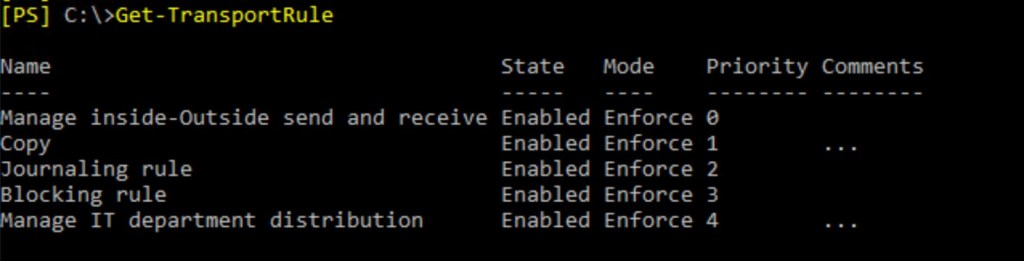
That’s not a lot. But in a real environment we can see a lot of rules, with complicated conditions. And it’s not a good idea to go though all of them manually.
3. We remember, that transport rules are part of built-in transport agent. So, let’s dig into AGENTINFO event. We have 2 such events, but we’re interested in one, that comes after FAIL event.
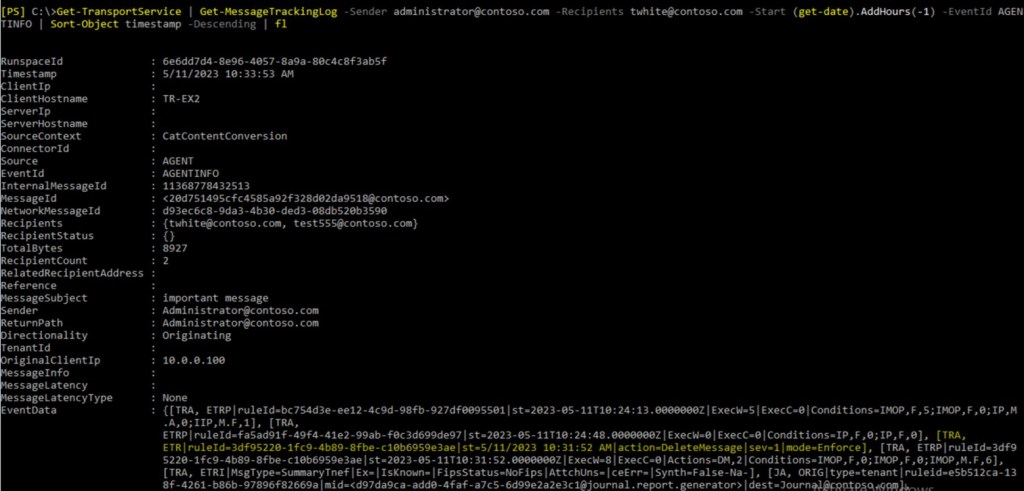
From this EventData we see, that message was deleted by specific rule.
4. Let’s find this rule by rule ID:
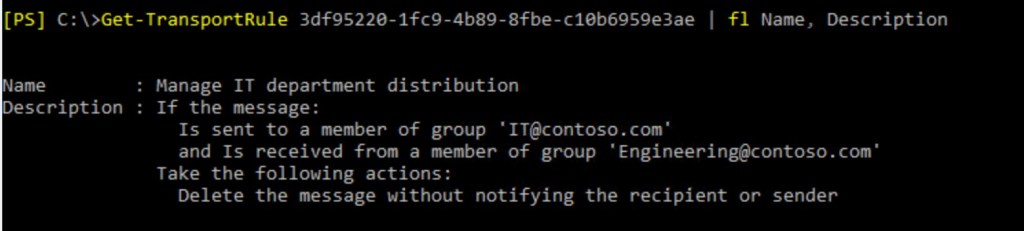
Sender and recipient are members of corresponding rules defined in transport rule conditions.
🧪Scenario №2
Message was delivered with delay. This issue can happen with one specific person or can be massive.
In ideal scenario, performance issues, backpressure events, services state should be tracked by monitoring system. In real life, the root cause can be obvious, but not known to IT personal proactively.
The easiest way to investigate information about message flow via message header or message tracking. If we can concentrate on specific server (long delay in pipeline processing) or couple of servers (long transfer from one server to another) we can use other tools for troubleshooting purposes.
In case we suppose performance issues with Exchange Server or related services, we should investigate performance counters and OS logs (AD latency, Backpressure and so on).
Sometimes, we cannot find the root cause if the issue is not reproduced. For example, hard to prove network connectivity fault from Exchange and OS logs only.
User A sent message to user B. User B complains that message was delivered with delay.
📌Troubleshooting steps
- We have example of message that experienced delays. For example, who, whom, when, subject and so on. You can search message tracking logs with appropriate filter.
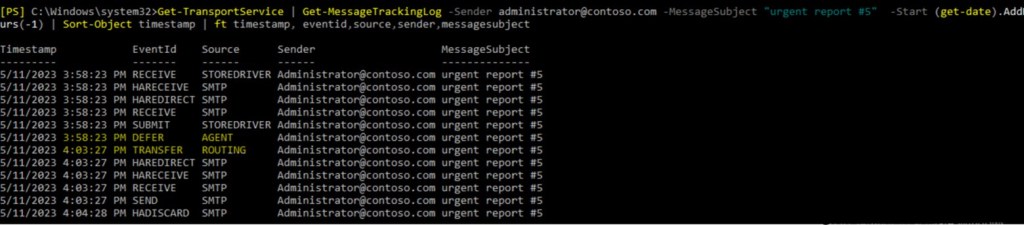
From this output we can see 5 min delay between DEFER eventid and TRANSFER. This is just example with small delay. In real life delays might be much higher for user to notice.
2. Dig into this event:

We can see, that message was delayed by some custom transport agent.
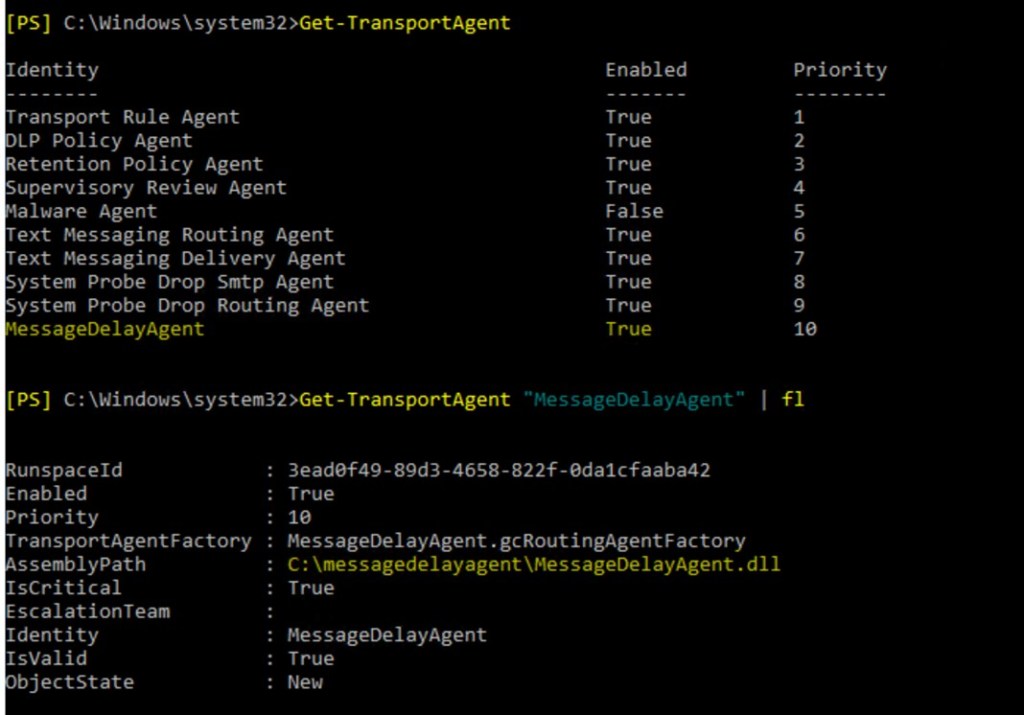
🧪Scenario №3
Messages are not delivered from on-prem users to cloud users in Hybrid config. Messages stuck in queues on Mailbox servers.
📌Troubleshooting steps.
- In this scenario we figured out that Mailbox servers configured to send emails directly to cloud servers. This is exact error message we see for specific queue:
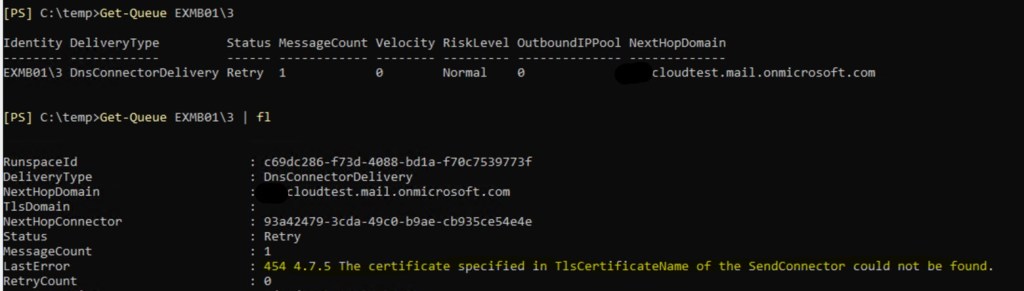
2. Let’s check appropriate property of send connector and certificates we have on problematic server:
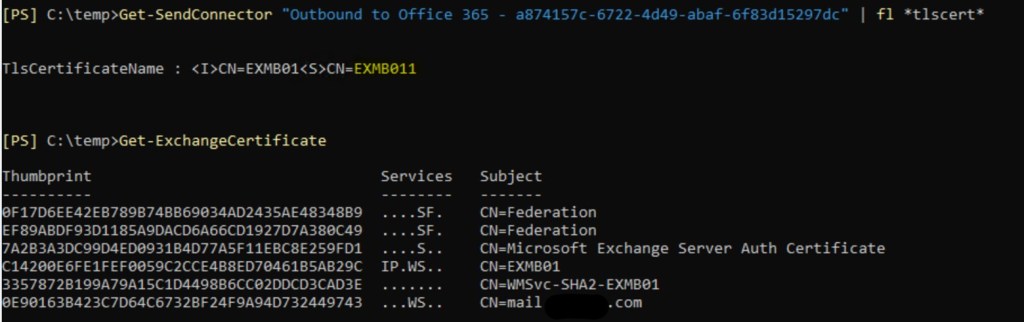
So, we don’t see any certificate that configured in send connector’s properties. That could happen, if certificate name was constructed with mistake. As send connector is configured globally for organization, it will affect all servers, configured to send via that connector.
Or, this certificate could be removed from one of the servers, in this situation it wouldn’t affect whole mail flow.
3. Next, we need to figure out which certificate is good to use. It will be the same as for Hybrid configuration issues by 3d party trust authority.

4. What about other logs?
- Smtp protocol logs and message tracking logs will show nothing in this situation
- Transport connectivity logs will only show connection failures without obvious reason:
2023-05-11T00:17:36.491Z,08DB516B657C52DF,SMTP,cloudtest.mail.onmicrosoft.com,>,”cloudtest-mail-onmicrosoft-com.mail.protection.outlook.com[104.47.51.110, 104.47.56.110]”
2023-05-11T00:17:36.494Z,08DB516B657C52DF,SMTP,cloudtest.mail.onmicrosoft.com,-,Aborted connection to 104.47.51.110 2
Bu default, those logs are located in C:\Program Files\Microsoft\Exchange Server\V15\TransportRoles\Logs\Hub\Connectivity
5. OS event logs will contain related event:
Log Name: Application
Source: MSExchangeTransport
Event ID: 12035
Task Category: TransportService
Level: Error
Description:
Exchange was unable to load certificate <I>CN=EXMB01<S>CN=EXMB011. More information: Is FrontEnd Proxy enabled: false. Original backend Server: mail.contoso.com. Send Connector Name from the original request: Outbound to Office 365 – a874157c-6722-4d49-abaf-6f83d15297dc.
6. Healthchecker script will highlight this configuration issue:
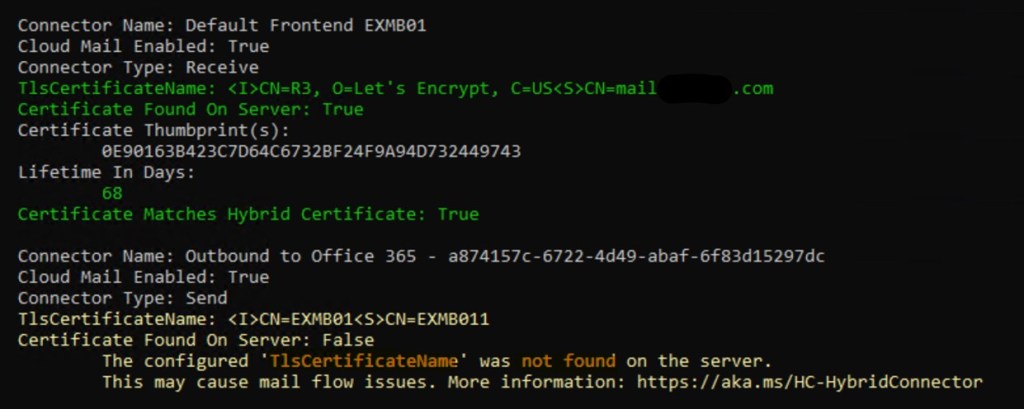
Although some logs were not valuable in this specific issue, next time they can shine a light on root cause.
🧪Scenario №4
Messages are delivered from on-prem users to cloud users in Hybrid config. But users complain that senders are not resolved in address book (i.e. look like external senders) and sometimes messages go to Junk folder.
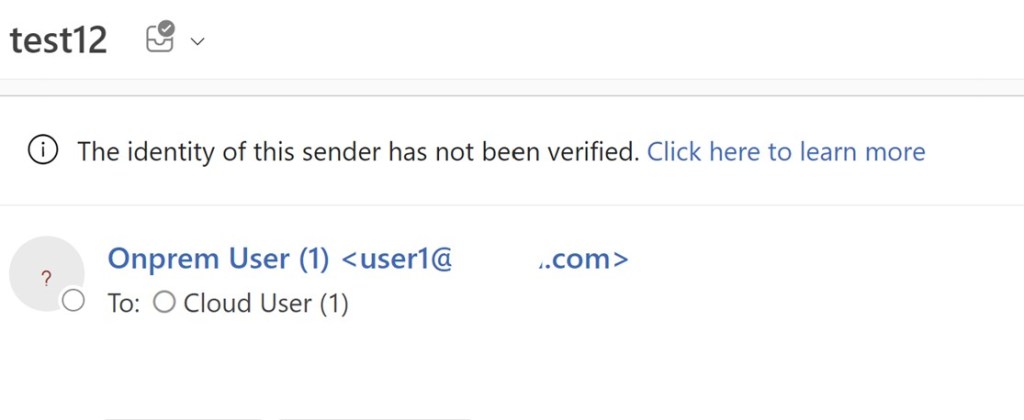
📌Troubleshooting steps.
- In this scenario we figured out that Mailbox servers configured to send emails directly to cloud servers. From description of issue we can suggest, that
X-MS-Exchange-Organization-AuthAsheader in messages, received from on-prem,is listed as anonymous. Symptoms can be different while experience this issue.
We verified that by analyzing message header of problematic message.
2. As we see from on-prem, message went though appropriate connector.

3. We could check our send connector settings, but let’s вo some troubleshooting on Exchange online side. From:

We clearly can see, that messaged doesn’t go though inbound receive connector.
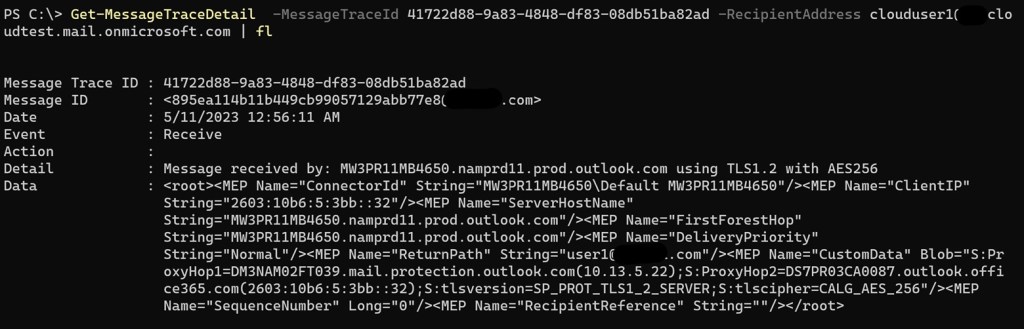
This is how it should look like in normal situation for our environment.

4. From previous sections we should recall, that O365 verifies certificate and external fqdn.
Let’s check certificate for send connector in on-prem:
So, this certificate exist, but it’s self signed, doesn’t match external FQDN, which is mail.contoso.com, for example.

5. If we could have example of message headers, we could se something like this:
X-MS-Exchange-CrossTenant-AuthSource:
DM3NAM02FT039.eop-nam02.prod.protection.outlook.com
X-MS-Exchange-CrossTenant-AuthAs: Anonymous
X-MS-Exchange-CrossTenant-FromEntityHeader: Internet
Which also means, we don’t use dedicated connector.
Healthchecker script will highlight this warning in that case:

Troubleshooting steps can be slightly different anyway, but all of them should lead to the same appropriate root cause.
🧪Scenario №5
Users in on-prem complains, that they are not able to receive messaged from cloud in hybrid config.
📌Troubleshooting steps.
- Lets use messagetrace and messagetracedetail cmdlets from EXO:


It looks like that service in on-prem is not available for EXO to send messages though.
2. Let’s look at smtp receive protocol logs in Exchange on-prem.
By default located here C:\Program Files\Microsoft\Exchange Server\V15\TransportRoles\Logs\FrontEnd\ProtocolLog\SmtpReceive (we’re trying to send via port 25, which is tied by default to FrontEnd service).
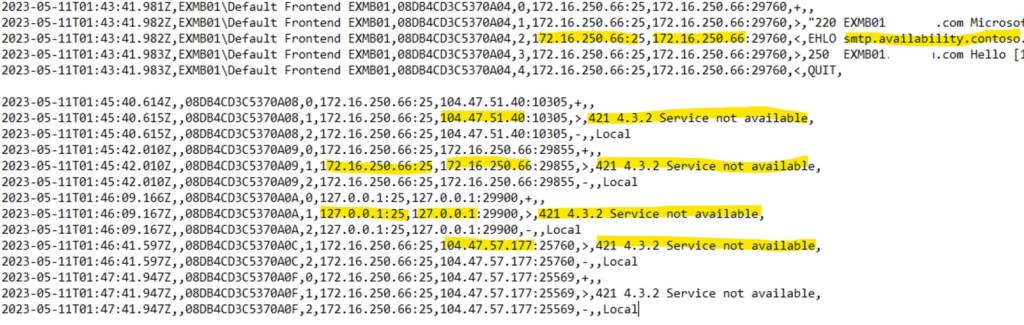
We can the same errors about service availability. Some connections are coming from EOP IP addresses (104.47.*) and others from server itself (Managed Availability healthchecks). Usually, message “service is unavailable” appears if no appropriate connector exist for incoming connections. Let’s check RemoteIPProperty for our connector:

Connections from EOP and from local server are not allowed due to that configuration.
For example, we can fix this issue by setting the whole range of ip addresses (default setting) in RemoteIPRanges.
🧪Scenario №6
Users complain that messages are not delivered. Email stuck in Outbox for users, who are using Outlook in online mode.
📌Troubleshooting steps
- Search for problematic email in message tracking logs:

2. Dig into SUBMITDEFER event:

3. We discussed that submission service should deliver message to transport service. This service communicates via Default connector. Let’s check authentication settings on that connector.
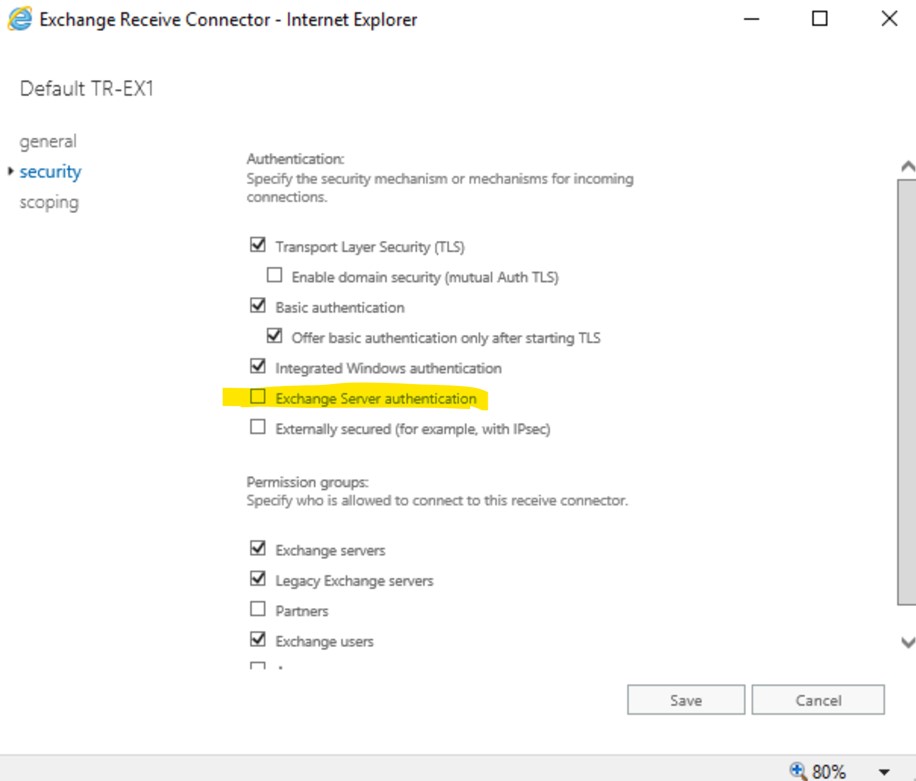
Exchange server authentication is missing in connector properties, which is a the root cause of the issue. Similar information can be seen in connectivity logs in C:\Program Files\Microsoft\Exchange
Server\V15\TransportRoles\Logs\Mailbox\Connectivity\Submission
2023-05-11T15:18:13.493Z,08DB4FF113DA7866,SMTP,mailboxtransportsubmissioninternalproxy,>,Established connection to 10.0.0.102
2023-05-11T15:18:13.495Z,08DB4FF113DA7866,SMTP,mailboxtransportsubmissioninternalproxy,-,Messages: 0 Bytes: 0 (Retry : Cannot achieve Exchange Server authentication)
✅Conclusion
I hope, that these examples make troubleshooting process more clear for you.
End.
 EWS Free Area
Leave a comment